Instead of the standard Woocommerce shop page, using Elementor you can have a custom and flexible design and layout of your product, listing and archive pages.
Don't miss out The Complete WooCommerce Elementor Tutorial!
1. How to create a WooCommerce Shop Page
Detailed instruction is available here: https://elementor.com/help/creating-a-woocommerce-archive-template/ and here: How to Customize WooCommerce Product & Product Archive Pages Via Elementor
You can locate the Single Product, Shop and Product Category templates under Dashboard > Theme Builder.

Mouse-hover and click on "Edit with Elementor" - Guide to Vamtam Elementor Builder

We recommend using the Navigator feature for quick and easy access to all elements of the layout - https://elementor.com/help/navigator/

Get to know the Elementor Theme Builder - https://elementor.com/help/elementors-theme-builder/
2. How to edit the Single Product template
Detailed instruction is available here: https://elementor.com/help/woocommerce-single-product-builder/


Don't miss out The Complete WooCommerce Elementor Tutorial!
Troubleshooting:
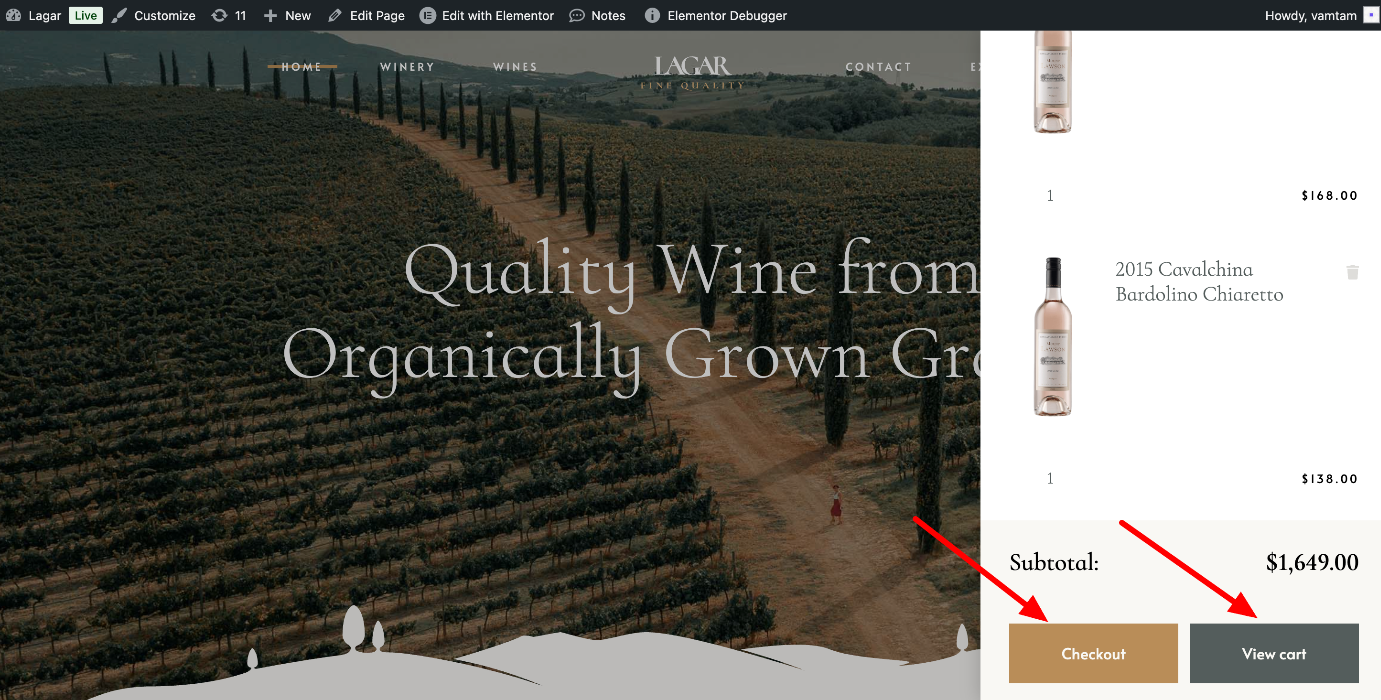
If clicking the View Cart or Checkout buttons redirects you to the home page or results in a 404 error, please follow the steps below to resolve the issue.
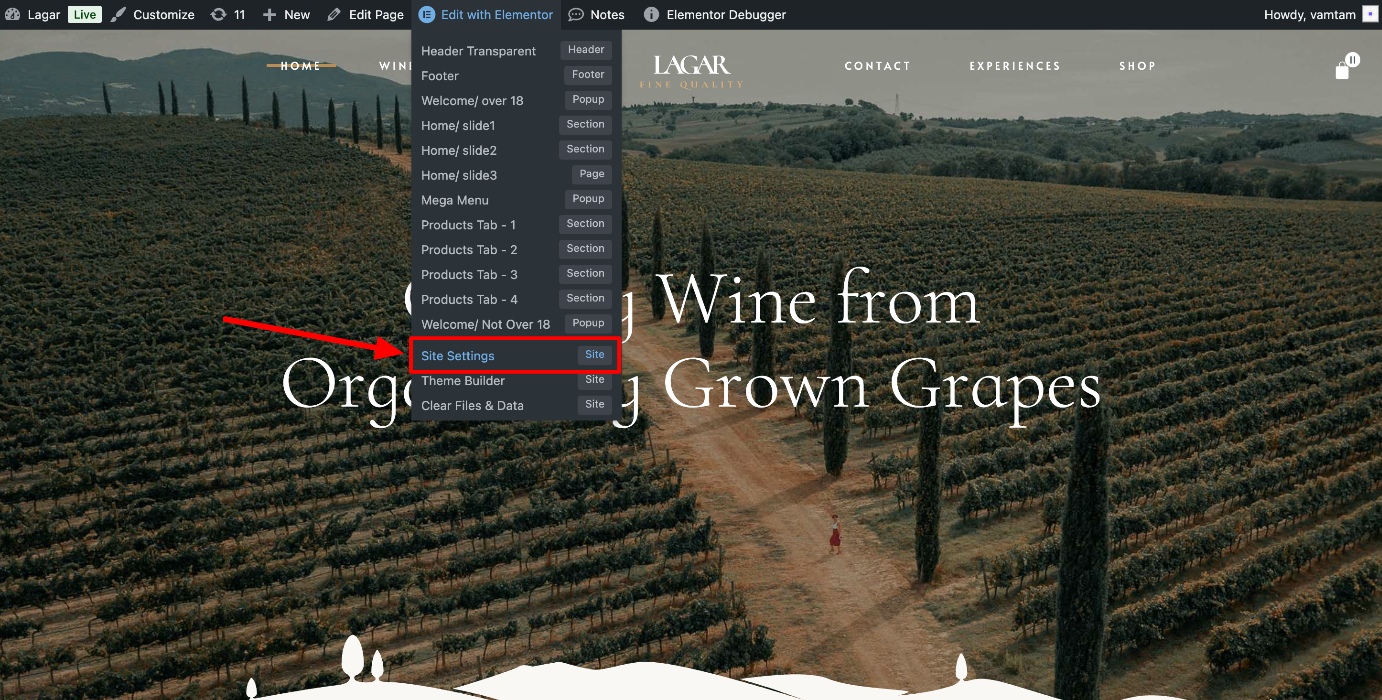
Open Elementor > Site Settings > WooCommerce:
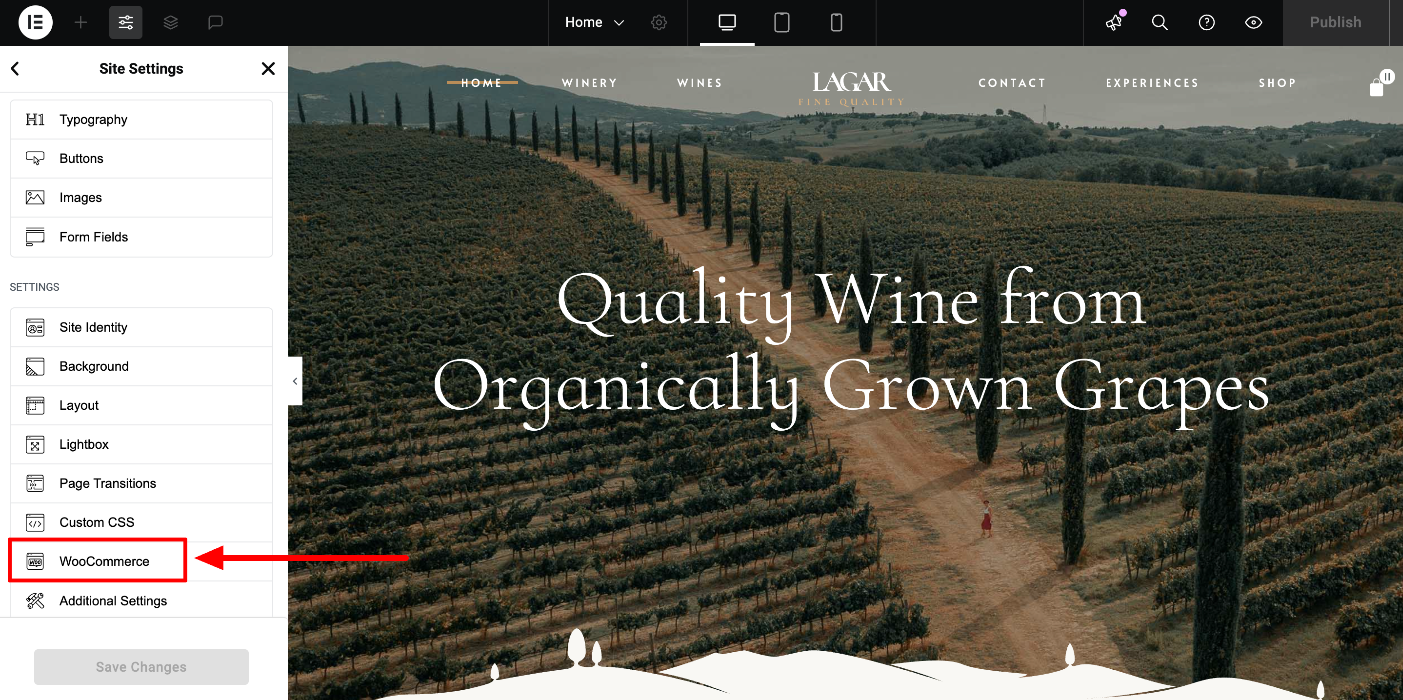
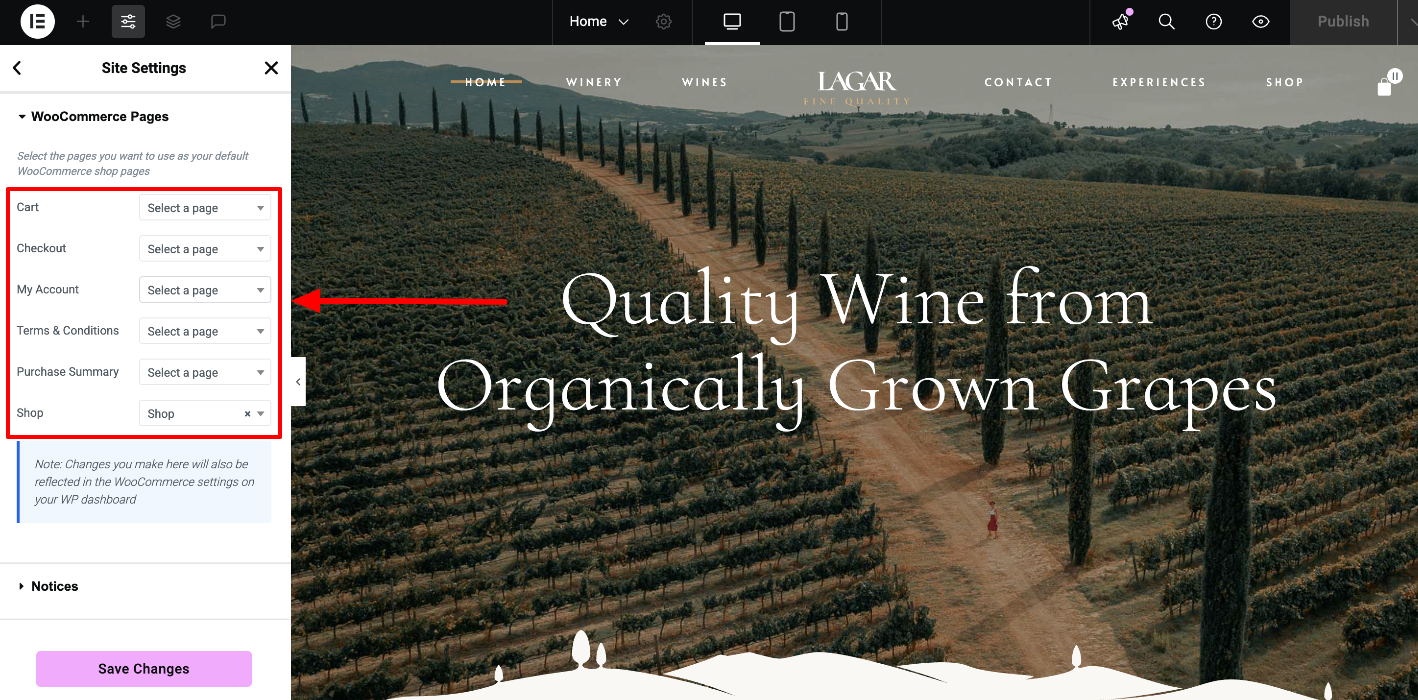
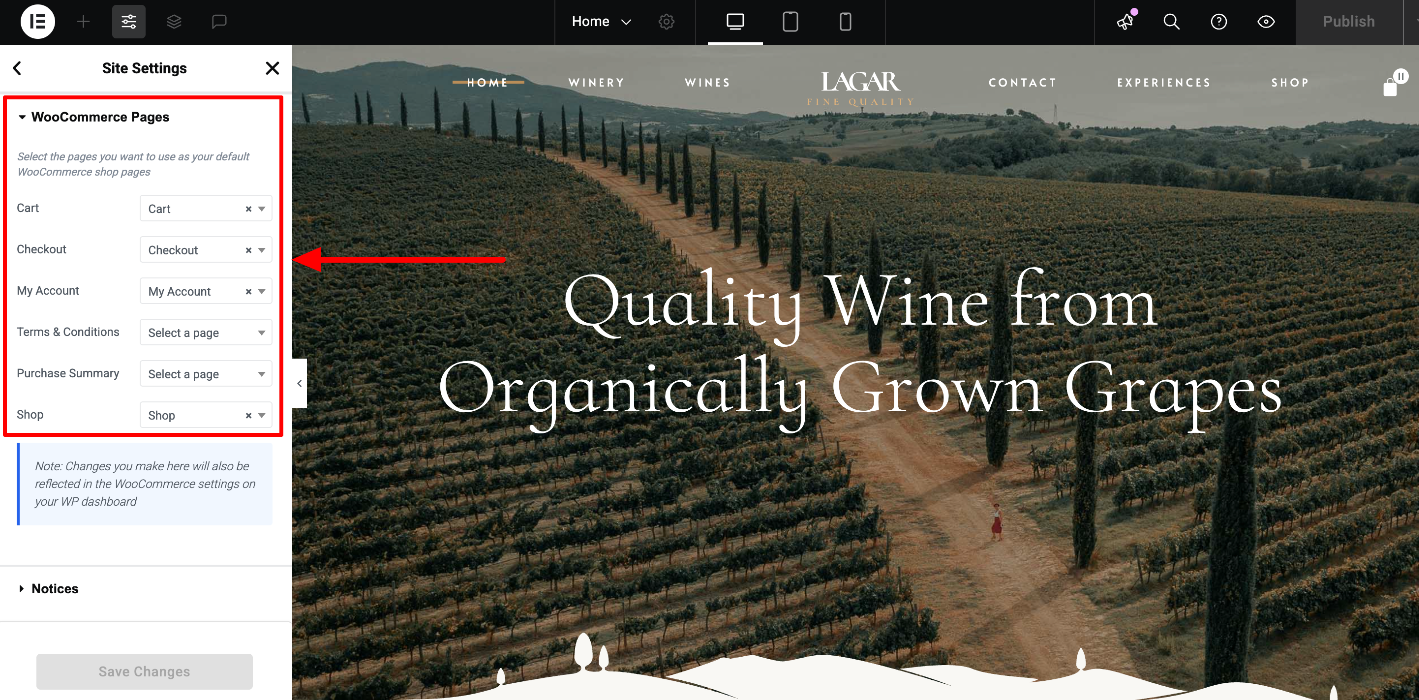
Select the WooCommerce pages. Next, clear the Elementor and browser cache. https://elementor.com/help/caching-prevents-live-site-from-showing-changes-in-editor/