


VamTam V4 themes use Components for blocks that repeat across the site, such as buttons, cards, banners and forms. This guide explains what Components are and how to edit them safely.
1. What is a Component?
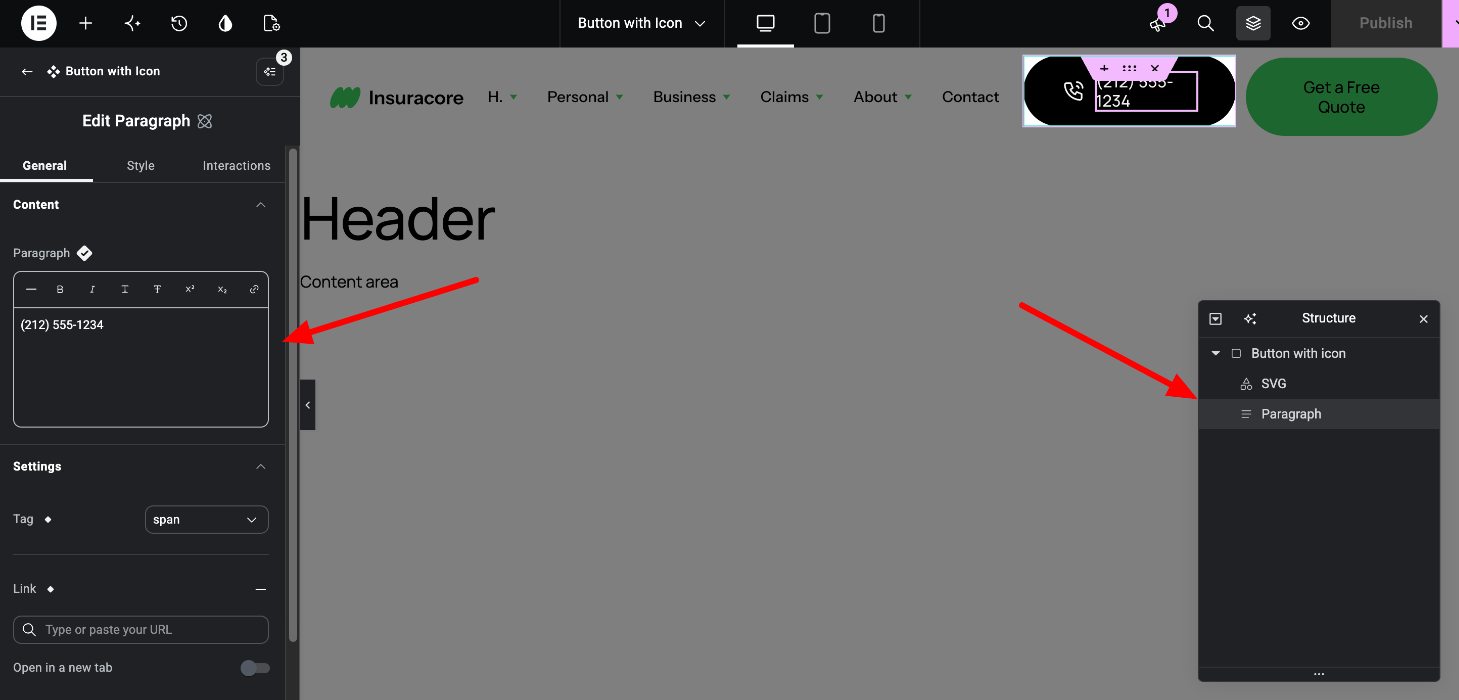
A Component is a reusable block made of several V4 elements, for example an icon, a text and a link saved together as one piece. The theme uses the same Component in many places, and every copy stays connected to the original.
Each Component has two layers:
- The original, which holds the structure and the design. Change it, and every copy on the site changes.
- The copies (instances) on your pages. Each copy can have its own content in the fields the Component allows, such as a different text, link or image.
In InsuraCore, for example, Components include Button with Icon (the phone button in the header), CTA Banner, Team Card, Testimonial Block, Stats Block and Free Quote Form.
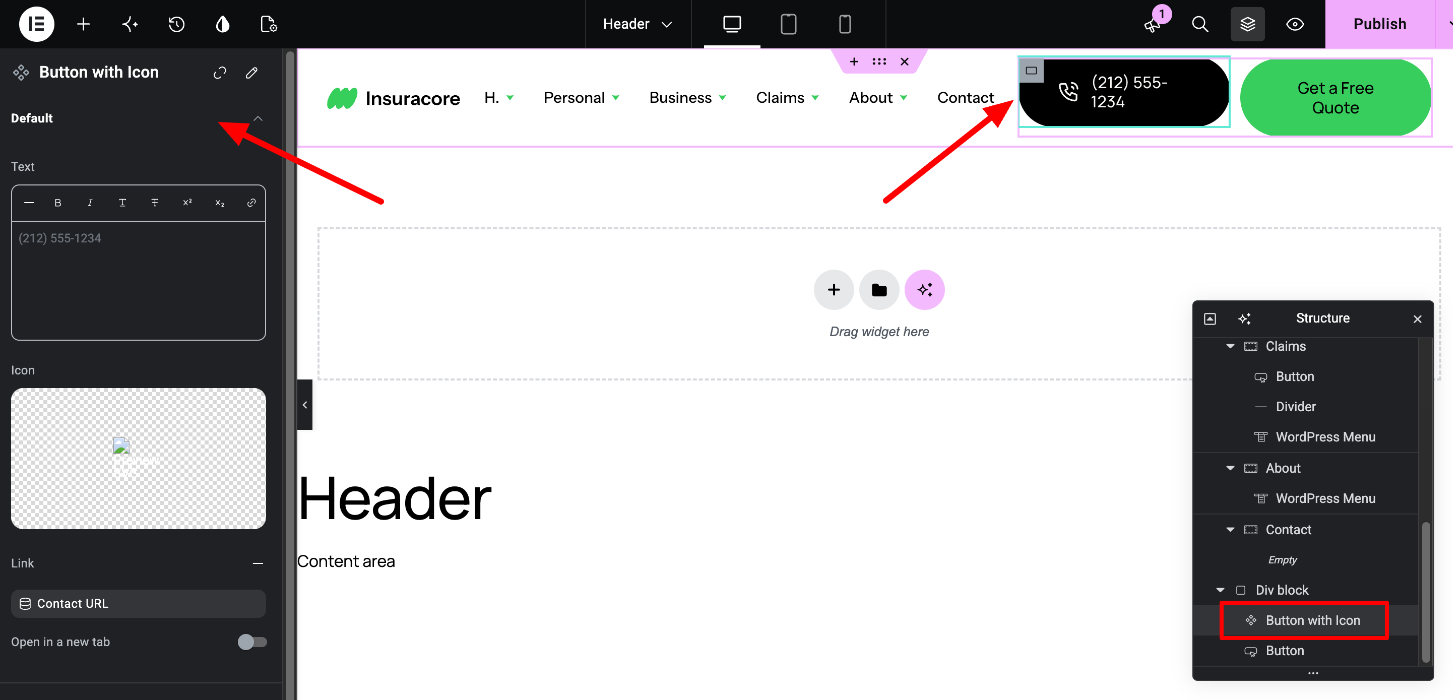
Elementor guide: Components
2. How to recognize a Component
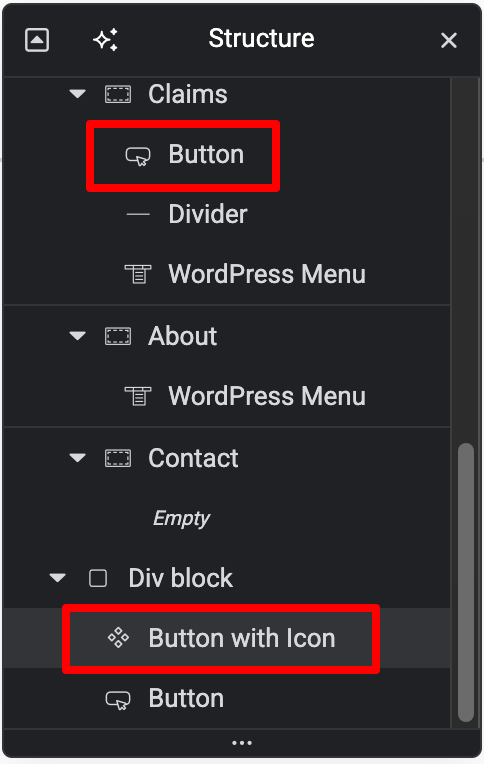
In the Structure panel, Components have their own icon, which is different from regular elements. When you select a Component, the panel shows only the fields you can change for that copy, instead of the full element settings.
3. Change the content of one copy
Use this when you want a different text, link or image in one place only.
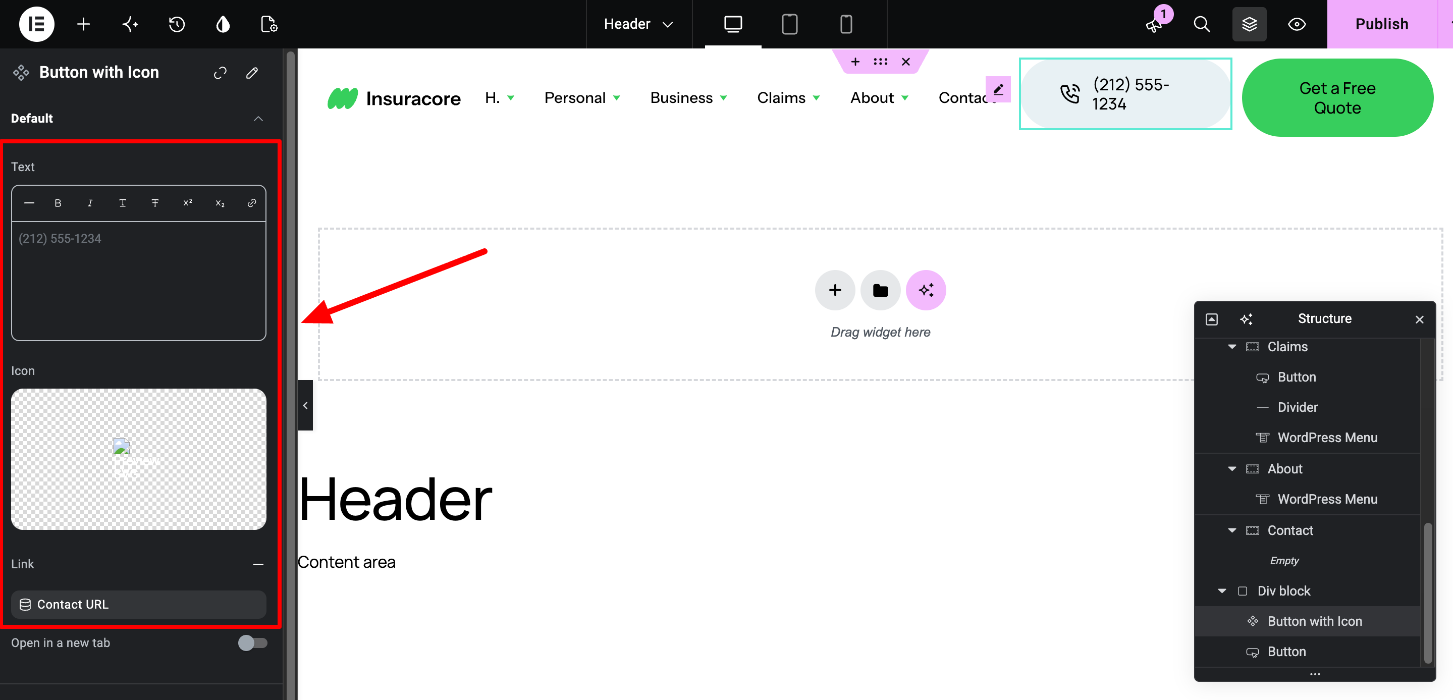
- Select the Component on the page or in the Structure panel.
- In the panel, edit the available fields, for example Text, Link or Icon.
- Click Publish.
Your values apply to this copy only. They stay in place even when the original Component is updated later.
4. Edit the Component itself
Use this when you want to change the design or structure of a Component everywhere it’s used.
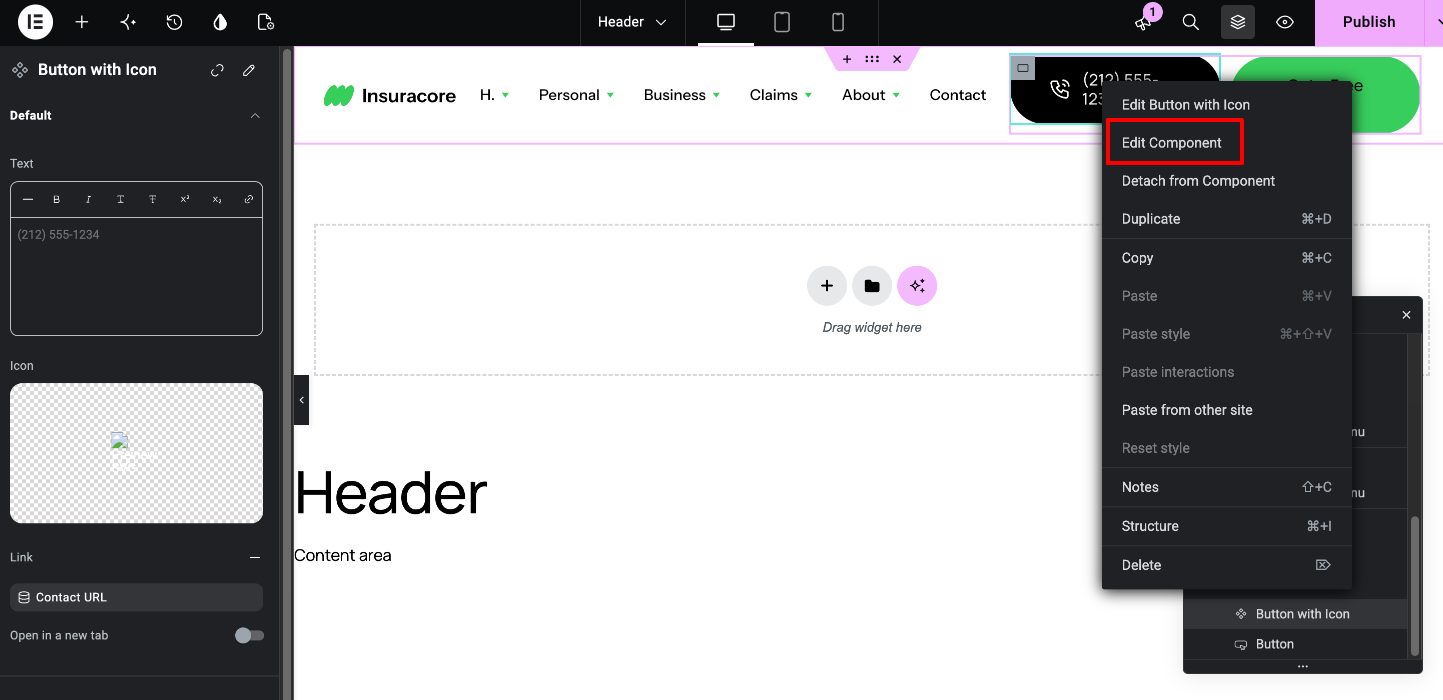
- Open the Component in edit mode in one of these ways:
- Double-click it on the page.
- Right-click it and select Edit Component.
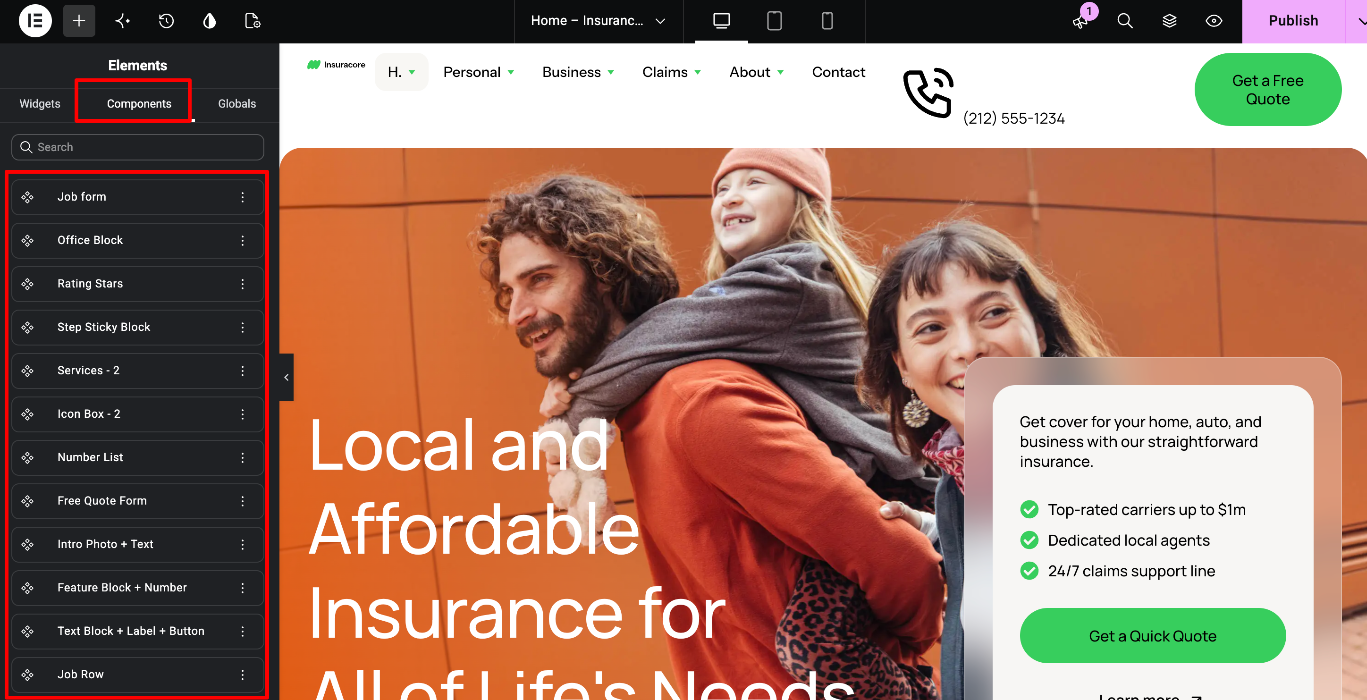
- In the Elements panel, open the Components tab, select the Component and click the pencil icon.
- Make your changes. You edit the elements inside it the same way as any V4 element.
- Exit edit mode, then click Publish. This saves the Component and your page together.
Important: changes made in edit mode apply to every copy of the Component across your site. Before you change it, check where else it’s used.
Elementor guide: Components
5. The Free Quote Form
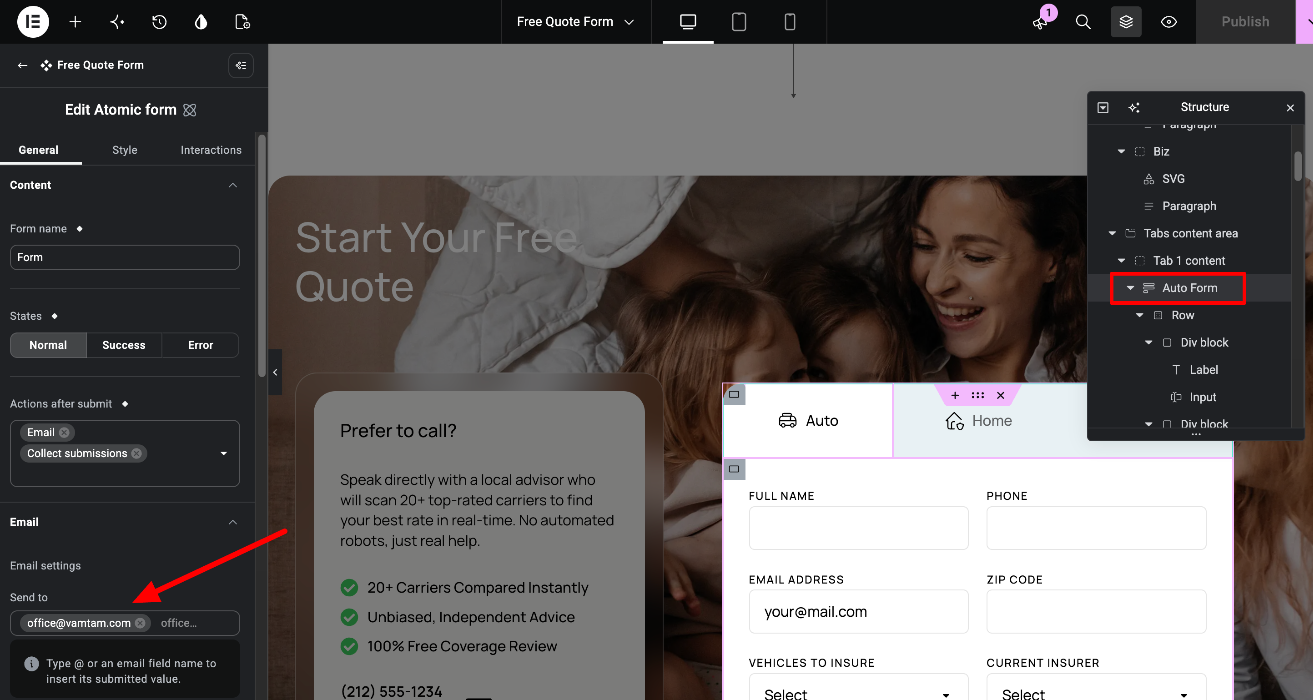
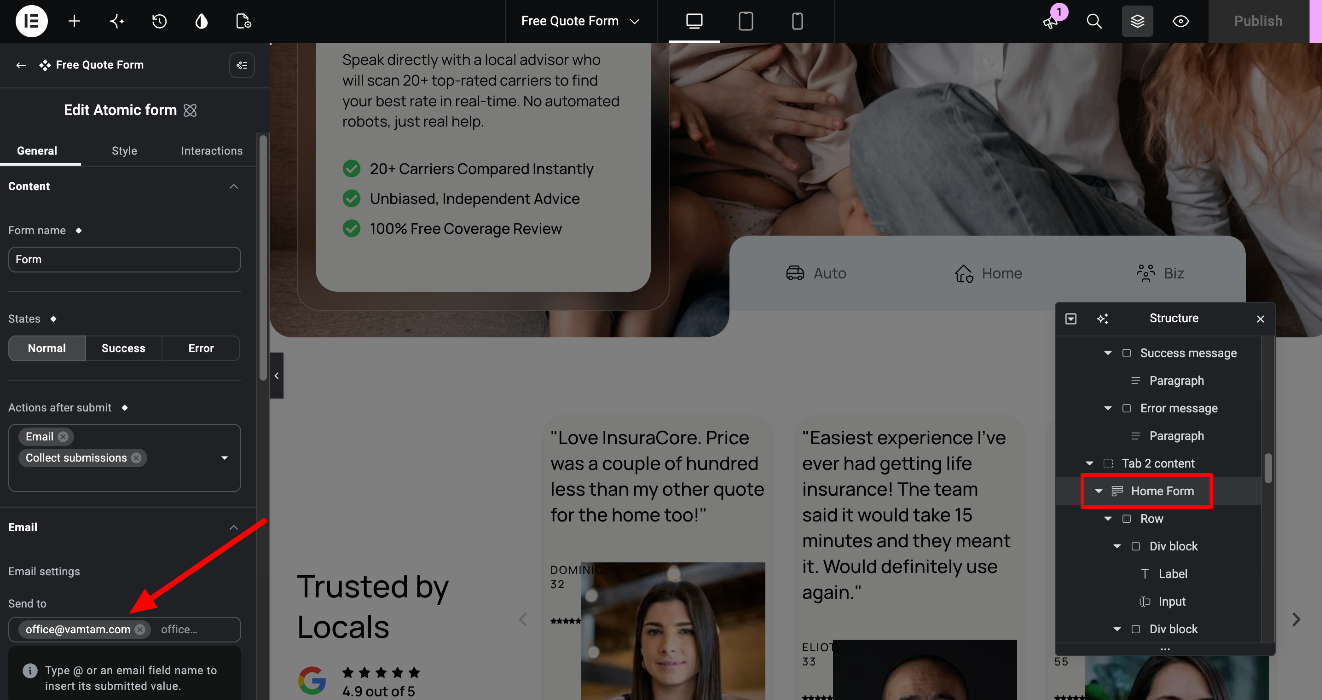
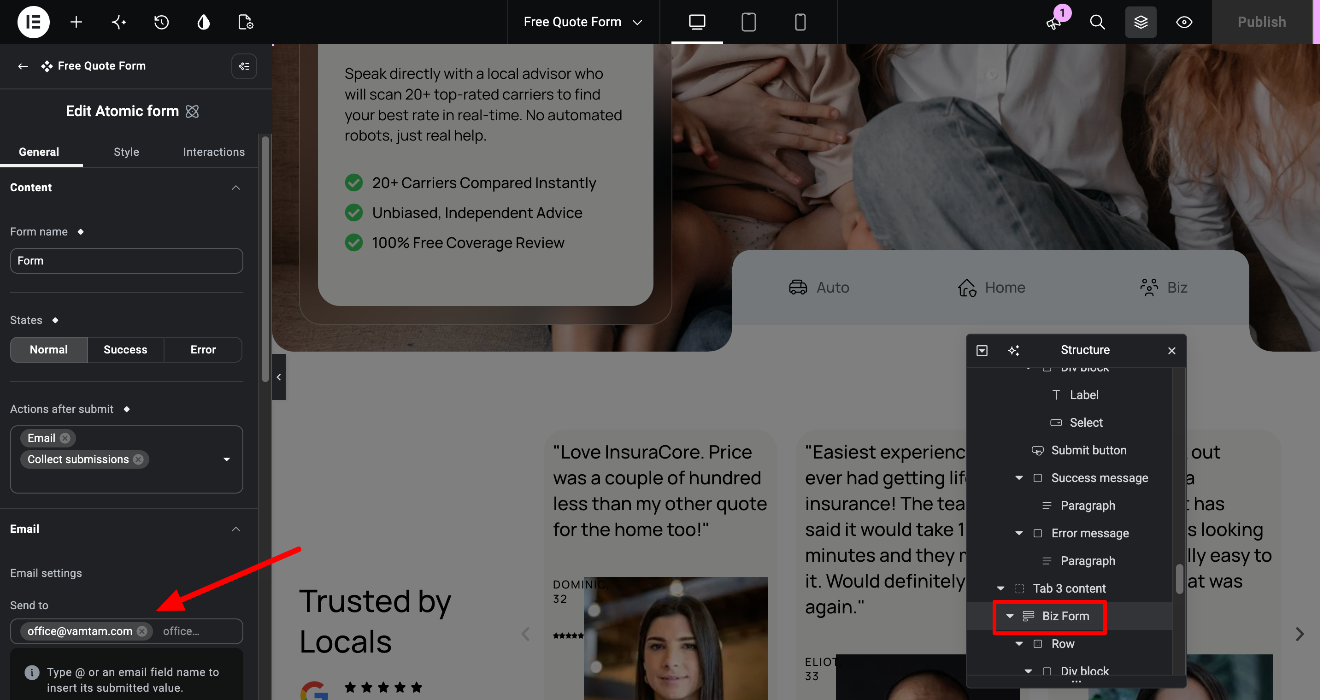
The Free Quote Form is a Component, so its settings are shared by every copy on your site, including where the form sends submissions. The Component has three tabs (Auto, Home and Biz), and each tab contains its own form. After you import the demo content, update the email address in all three forms, so that every quote request reaches you:
- In the Elements panel, open the Components tab and click the pencil icon next to Free Quote Form.
- In the Structure panel, open Tabs > Tabs content area > Tab 1 content and select Auto Form.
- In the panel, go to Email > Send to. Remove office@vamtam.com by clicking the x next to it, then type your own email address and press Enter. If you don’t see the Email section, make sure Email is selected under Actions after submit.
- Repeat steps 2 and 3 for Home Form (Tab 2 content) and Biz Form (Tab 3 content).
- Exit edit mode and click Publish.
The forms also save every submission in Elementor > Submissions, so you won’t lose a request even if an email doesn’t arrive.
6. See all Components on the Style Guide page
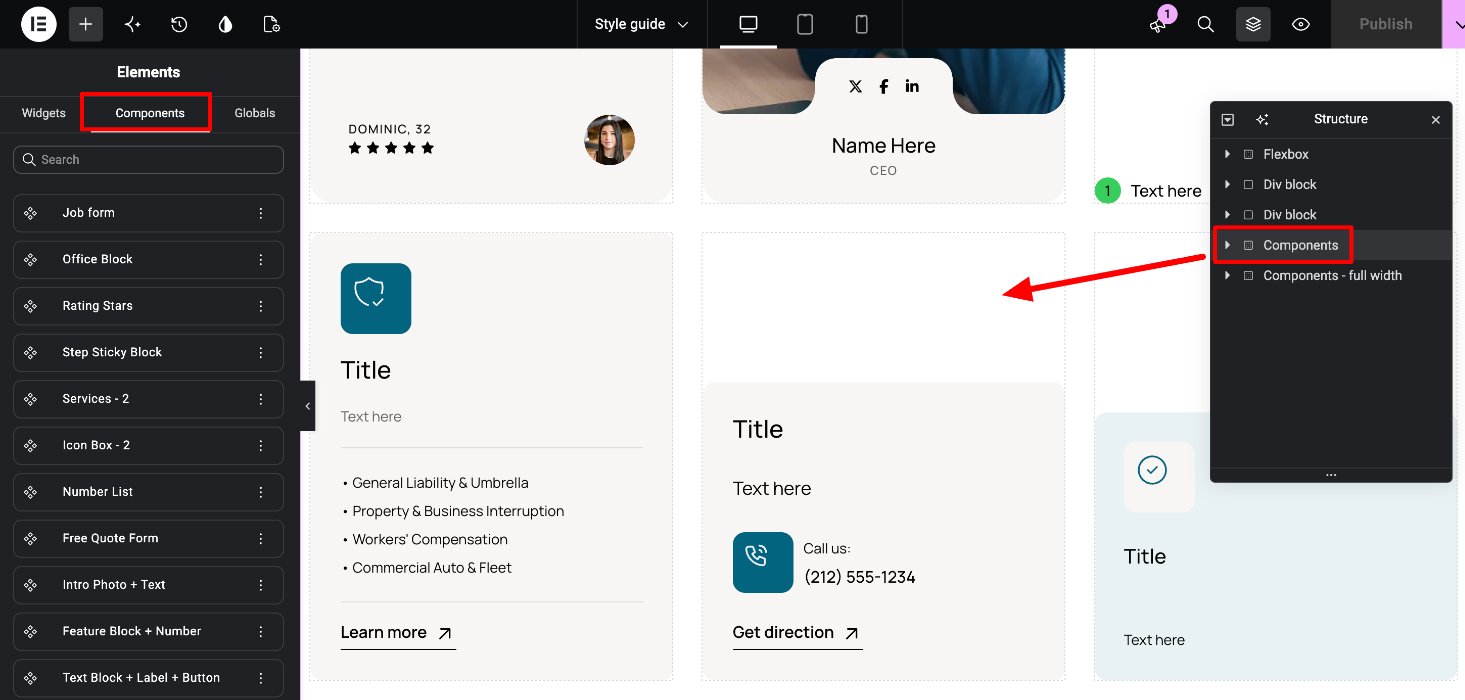
Your site includes a Style Guide page, imported together with the demo content. It shows the theme’s design system in one place: typography, colors, spacing, buttons and all the Components that come with the theme.
Use it to:
- See what each Component looks like before you use it.
- Copy a Component to another page: right-click it on the Style Guide page, select Copy, then right-click on your page and select Paste.
You can also find all Components in the Components tab of the Elements panel.
Tip: keep the Style Guide page as a reference, but don’t add it to your menus. If you don’t want it to appear in search results, set it to Private or Draft.
7. Good to know
- You need Elementor Pro to create and edit Components.
- Only users with Administrator permissions can create and edit Components.
- Components are built from V4 elements only, so classic widgets can’t be part of a Component.
Related articles
Setup Guide VamTam Elementor V4 Theme
InsuraCore Elementor V4 Theme: How to edit the Header section?